How to Speed Up Your Photo Editing in Adobe Lightroom
Over my time as a photographer editing photos, I have had to learn to be quick and efficient when combing through each client's gallery. In sorting through portrait sessions with over 1,000 images and editing high speed concert shoots with even more photos to go through, I've developed a few helpful tricks to make massive editing projects as fast and painless as possible. Here are some of my most helpful tips on efficient photo editing in Adobe Lightroom CC.
Sort your shoots
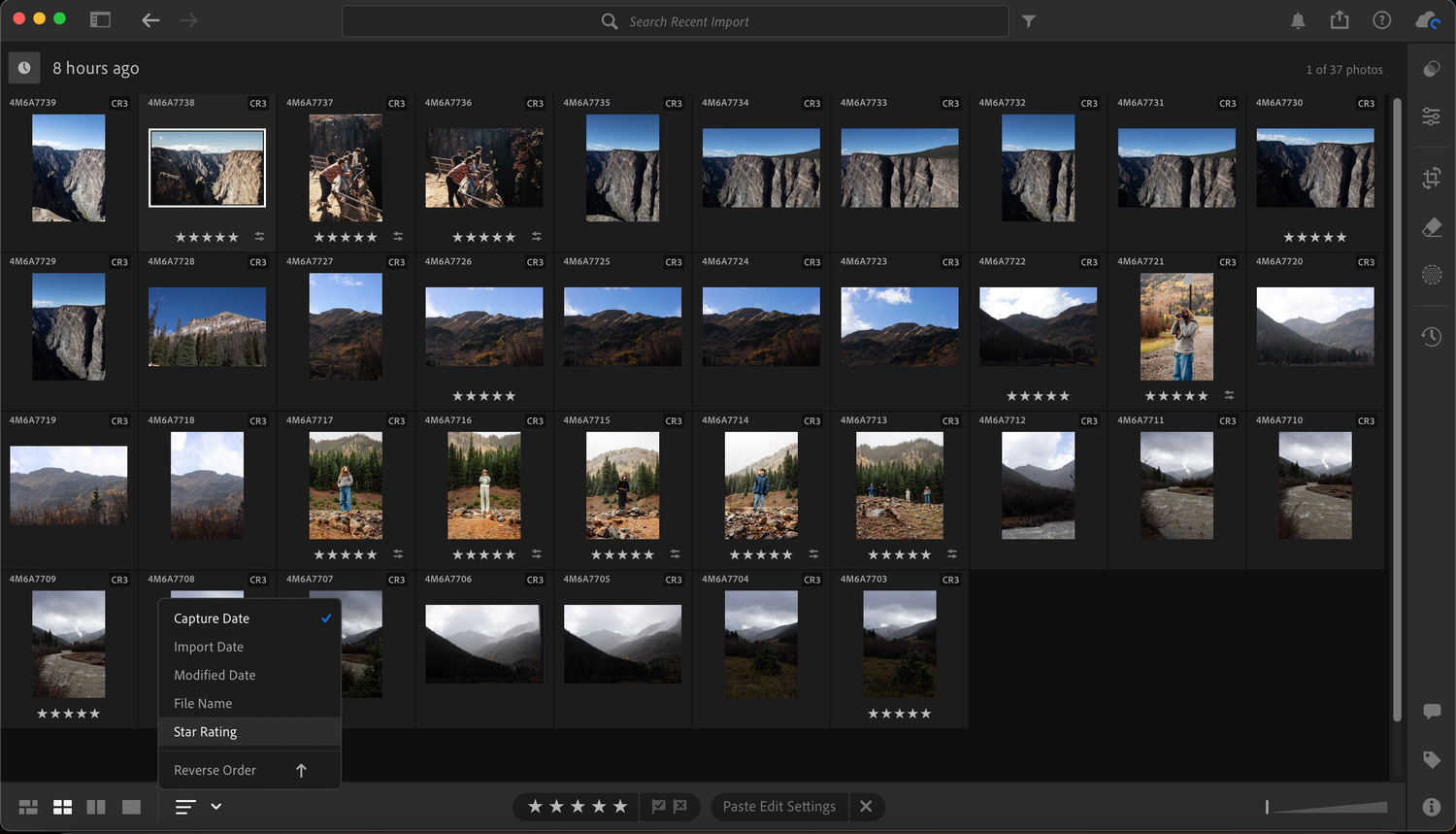
I use the star ratings in Lightroom to mark which photos I want to keep. Separating the sorting and editing process is really helpful to avoid redundant edits and back-and-forth of adding and removing photos. This is also a great time to focus on cropping photos, healing blemishes, and removing objects. After going through the photos in capture order and hitting the 5 key on each keeper, I sort by star rating to separate the 5-star photos from the others
DIAL IN YOUR PRESETS
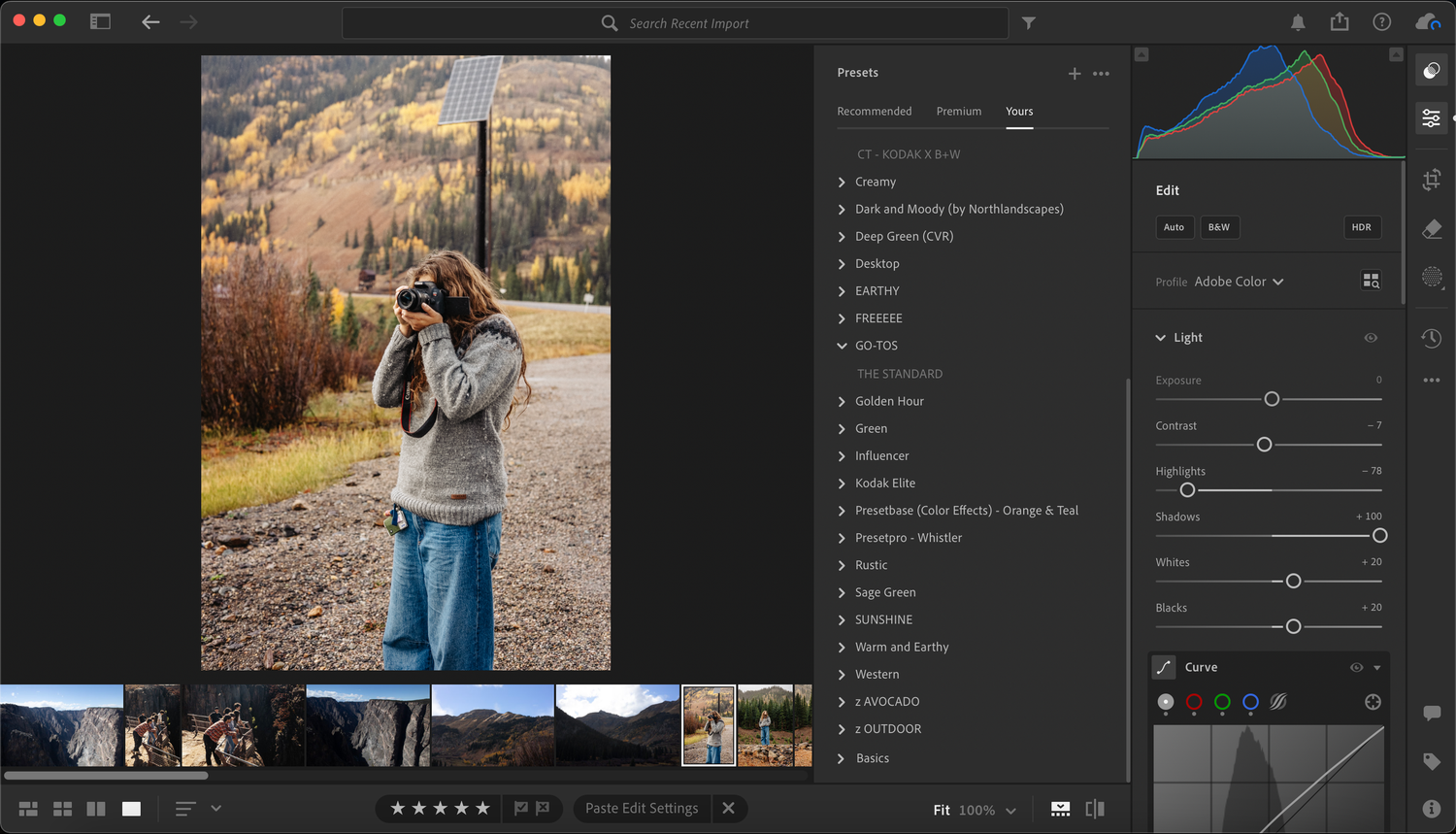
After sorting through everything, I move to the initial edits. Having a reliable starting point for your edits can help shave a lot of time off of the whole editing process. It took me some trial and error to get my presets to where I wanted them, but now that I have a reliable general preset, my edits have a solid starting point that only needs a small tweak or two for each session. I started with a two dollar Etsy preset that was emulating Kodak Gold 200 film, and have been tweaking it to make it more suitable for my portrait photos.
Copying and Pasting
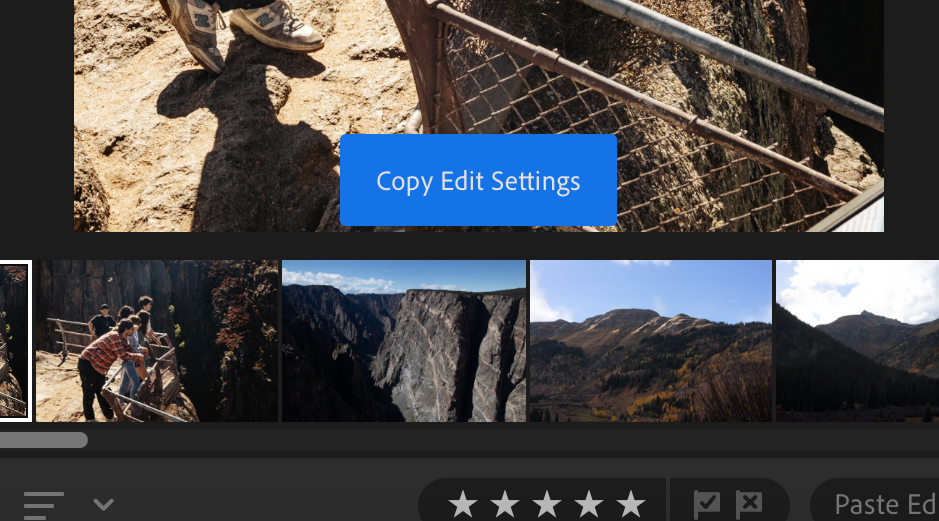
When you have an edit that is in a good spot, I find it easiest to copy the edit setting of that photo to the next photo in the gallery. I usually will use one copy on several photos in a row until the lighting or composition changes enough to copy again on a new edit.
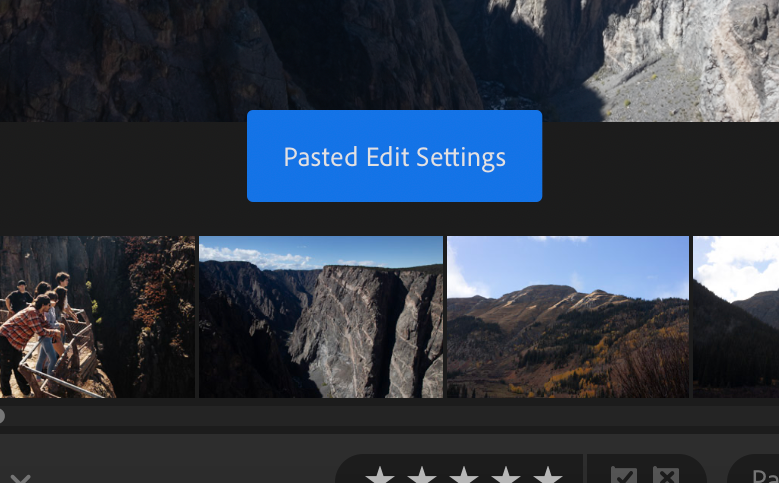
After pasting the edit settings onto the next photo, I find that I often have to make a small adjustment to the overall exposure or some other varied adjustments depending on other changes in the image. It just comes down to using your eye and making sure photos stay consistent.
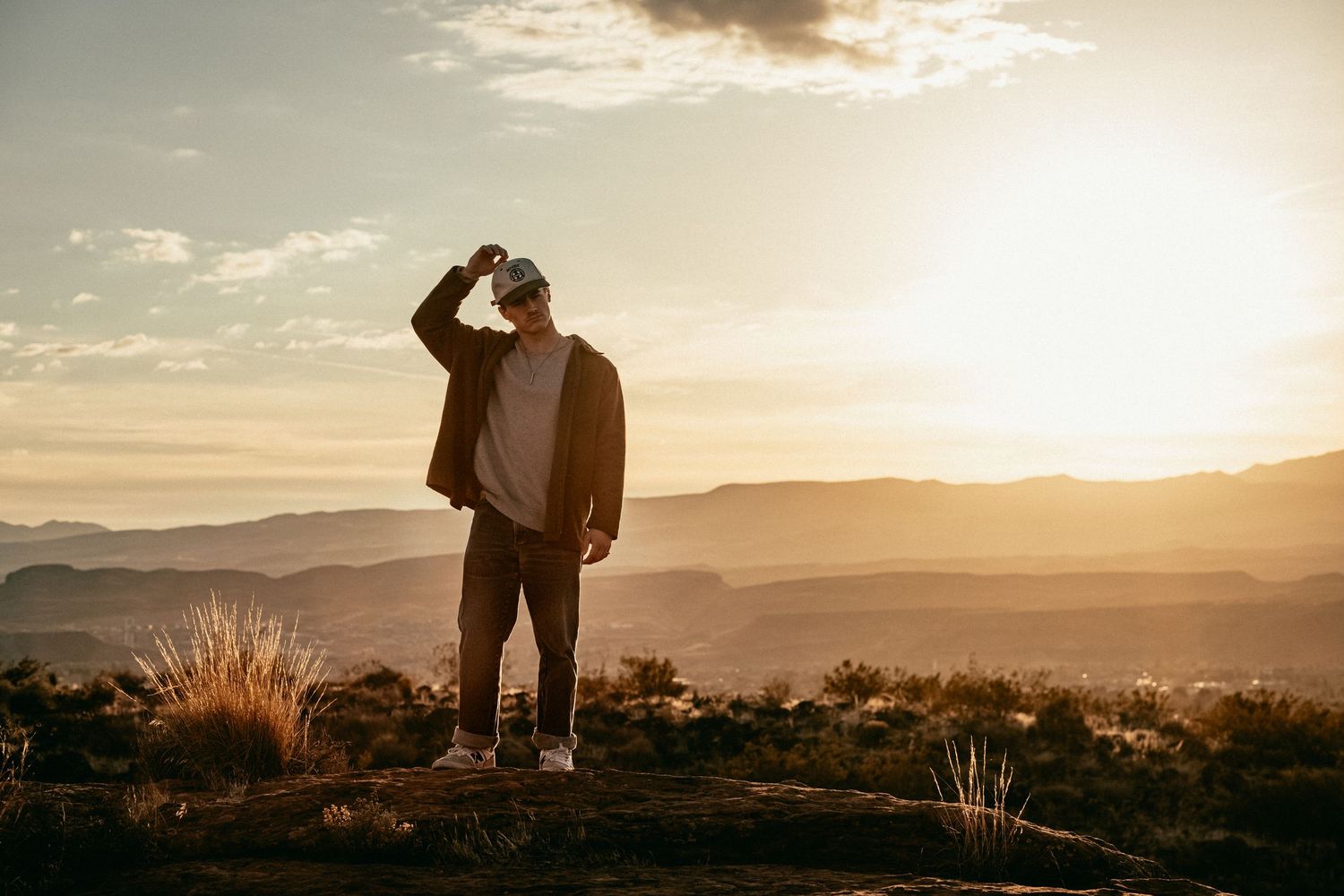
After going through your galleries with star ratings, presets, and copying and pasting, everything should be straightforward from then on out with the small tweaks needed for each photo. Hopefully this guide was helpful and that you can shave off some time from editing in the future, making your edits faster and more efficient. Be sure to stay tuned and follow along for more editing tips and photography adventures, and check out one of my other stories below.
